
The processing of incoming logs into structured attributes is facilitated by Pipelines and processors, which enables easier querying and analysis. initial
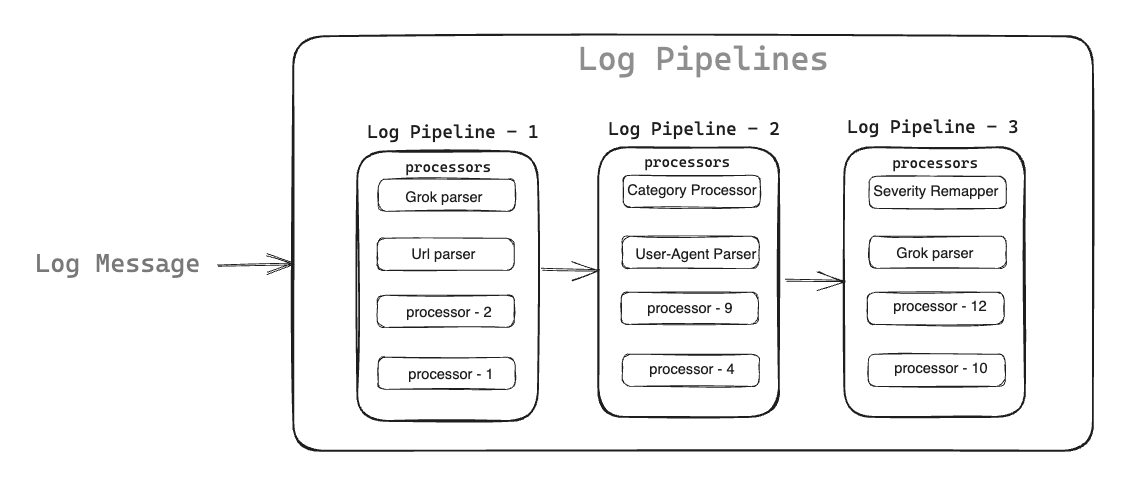
Atatus log pipelines seamlessly convert logs from diverse formats into a unified structure. Embrace our efficient log processing strategy to establish a standardized attribute naming convention for your organization, ensuring better insights and analysis.
Pipelines offer a sequential chain of processors to parse and enrich logs, extracting valuable attributes from semi-structured text for reuse as facets. Each log undergoes filtering against all pipeline filters, applying processors sequentially upon matching. Experience streamlined log processing and enhanced data utilization with our powerful pipeline architecture.
Enjoy the flexibility of applying pipelines and processors to logs of any type effortlessly. Our system eliminates the need for logging configuration changes or server-side rule deployment. Seamlessly configure everything within the user-friendly pipeline configuration page for a hassle-free experience.
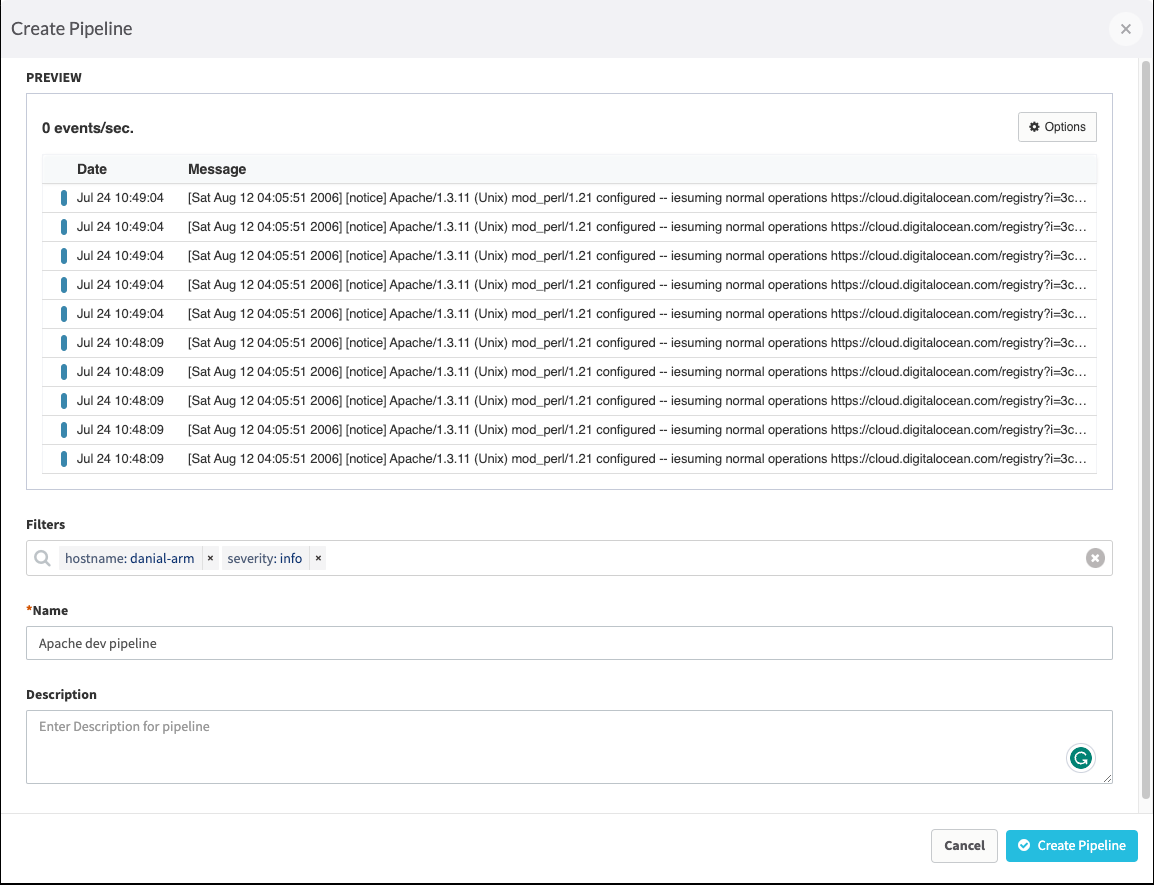
To create a pipeline:
Navigate to the
Logstab in the Atatus dashboard and click onPipelinesin the side panel.Click on the
New Pipelinebutton to create a new pipeline.By default, you will only see the Date and Message fields; if you need more, click on
Optionsand select your desired fields. There are three options:Source,Host, andService.From the preview, select a log and apply the filter. Select a filter from the Filter drop down menu to limit which logs the pipeline applies to.
Give your pipeline a name. You can add a description to the pipeline, which can be used to provide information about the purpose of the pipeline and the team responsible for it.
To create a pipeline, click the
Create Pipelinebutton.
Add a Processor to the pipeline
Pipelines will have one or more processors which are applied sequentially. You can add processors as follows.
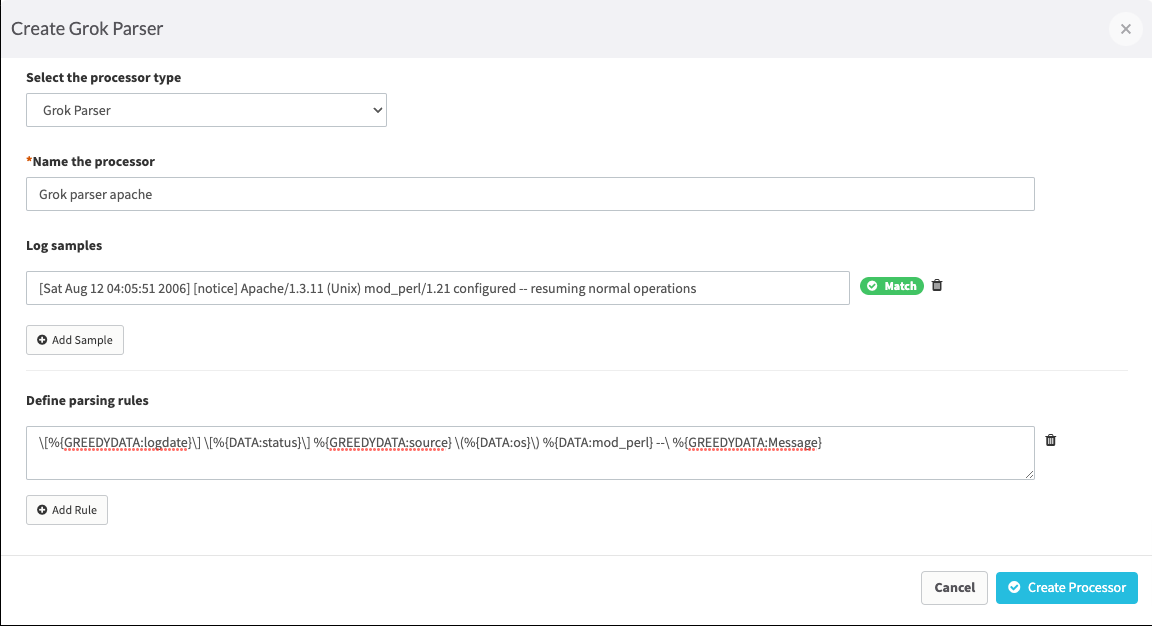
To add a processor, click on the
pipelineto which it should be added.To proceed, click the button labeled
Add processor. This action will trigger a popup window to appear.Select the processor type in the given drop down list.
Give a name to the processor.
You can add log samples by clicking the
Add Samplebutton.Note: If you need to add more log samples, click "Add Sample" button again. Additionally, if you wish to remove a log sample, you can delete it.Define the parsing rules based on the log samples.
To add a processor to your pipeline, click the
Create Processorbutton.
 +1-415-800-4104