
Overview
Atatus allows you to archive your ingested logs to Amazon S3. Archiving logs ensures long-term retention, helps meet compliance requirements, and allows you to access historical log data whenever needed.
With S3 log archiving, you can:
- Retain logs for extended periods.
- Maintain compliance with security audits.
- Analyze historical data when required.
- Reduce costs by offloading large datasets to cloud storage.
Archived logs are stored in your S3 bucket in compressed JSON format. This makes them easy to retrieve and query later using AWS Athena, Elasticsearch, or other log analysis tools.
Prerequisites
Before configuring log archiving in Atatus, you must create an Amazon S3 bucket to store the archived logs. If you haven't created one yet, follow the AWS documentation to create an S3 bucket.
Step 1: Configure S3 Bucket Permissions
To allow Atatus to write logs to your bucket, you need to update its bucket policy.
- Sign in to the AWS Management Console and navigate to S3.
- Click on the name of the bucket you created for log archiving.
- Switch to the Permissions tab.
- Scroll down to the Bucket policy section and click Edit.
- Paste the following JSON policy.
Important: Replace YOUR_BUCKET_NAME with your actual bucket name in both Resource lines.
{
  "Version": "2012-10-17",
  "Statement": [
    {
      "Sid": "AtatusLogBucketAccess",
      "Effect": "Allow",
      "Principal": {
        "AWS": [
          "arn:aws:iam::431904702782:root"
        ]
      },
      "Action": [
        "s3:ListBucket"
      ],
      "Resource": "arn:aws:s3:::YOUR_BUCKET_NAME"
    },
    {
      "Sid": "AtatusLogObjectAccess",
      "Effect": "Allow",
      "Principal": {
        "AWS": [
          "arn:aws:iam::431904702782:root"
        ]
      },
      "Action": [
        "s3:PutObject",
        "s3:DeleteObject"
      ],
      "Resource": "arn:aws:s3:::YOUR_BUCKET_NAME/*"
    }
  ]
}
- Click Save changes.
Step 2: Set up Archiving in Atatus
Once your S3 bucket permissions are configured, you can set up the archive destination in the Atatus dashboard.
- In Atatus, navigate to Logs > Archives.
- Click the Create New Archive button.
- Fill in the archive details:
| Field | Description |
|---|---|
| Bucket Name | The exact name of your Amazon S3 bucket. |
| Bucket Path | The specific folder or prefix path inside the bucket where logs should be saved. |
| Region | The AWS region where your bucket is hosted (e.g., us-east-1). |
| Archive Name | A descriptive name to easily identify this archive configuration in Atatus. |
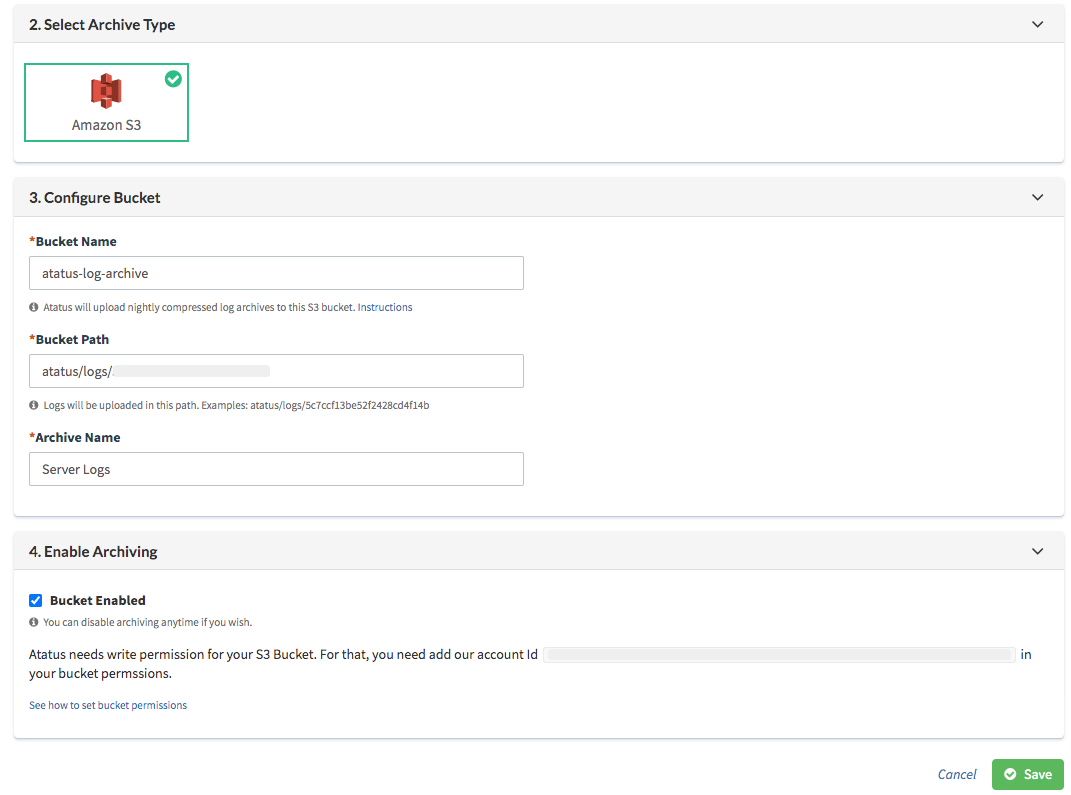
4. Click Save to activate the archive.
Atatus will now begin forwarding and archiving your logs to the specified Amazon S3 bucket.
 +1-415-800-4104