
The Kubernetes Overview view visualizes clusters monitored by the Kubernetes agent, structured by containment hierarchy (what lives inside what) rather than network traffic.
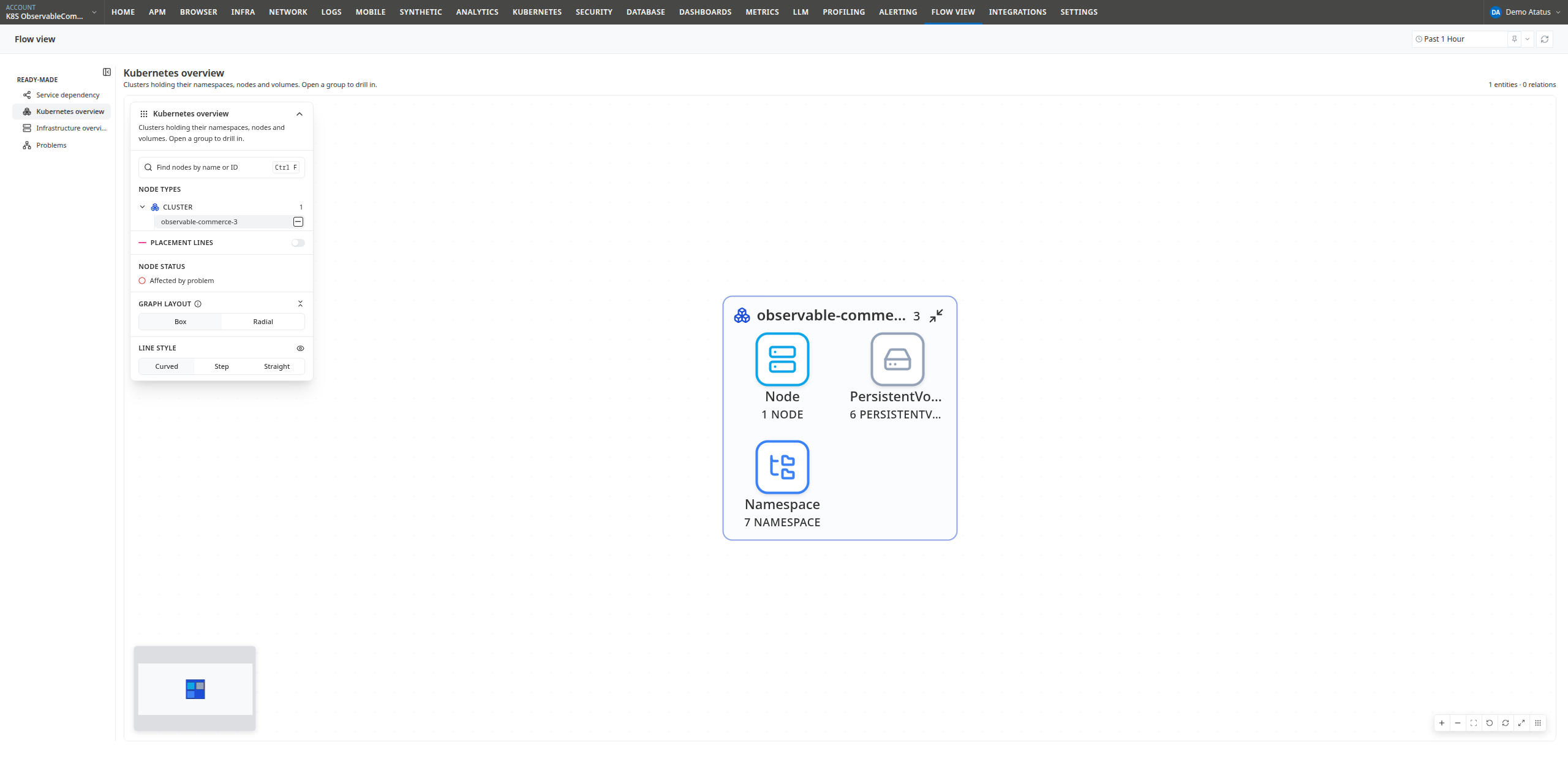
Drilling into a cluster
The view initializes with one top-level node per monitored cluster. Double-clicking a cluster reveals the primary resource groups within it:
- Node: The physical or virtual worker machines in the cluster
- Namespace: The logical boundaries configured within the cluster
- PersistentVolume: The cluster-level storage volumes
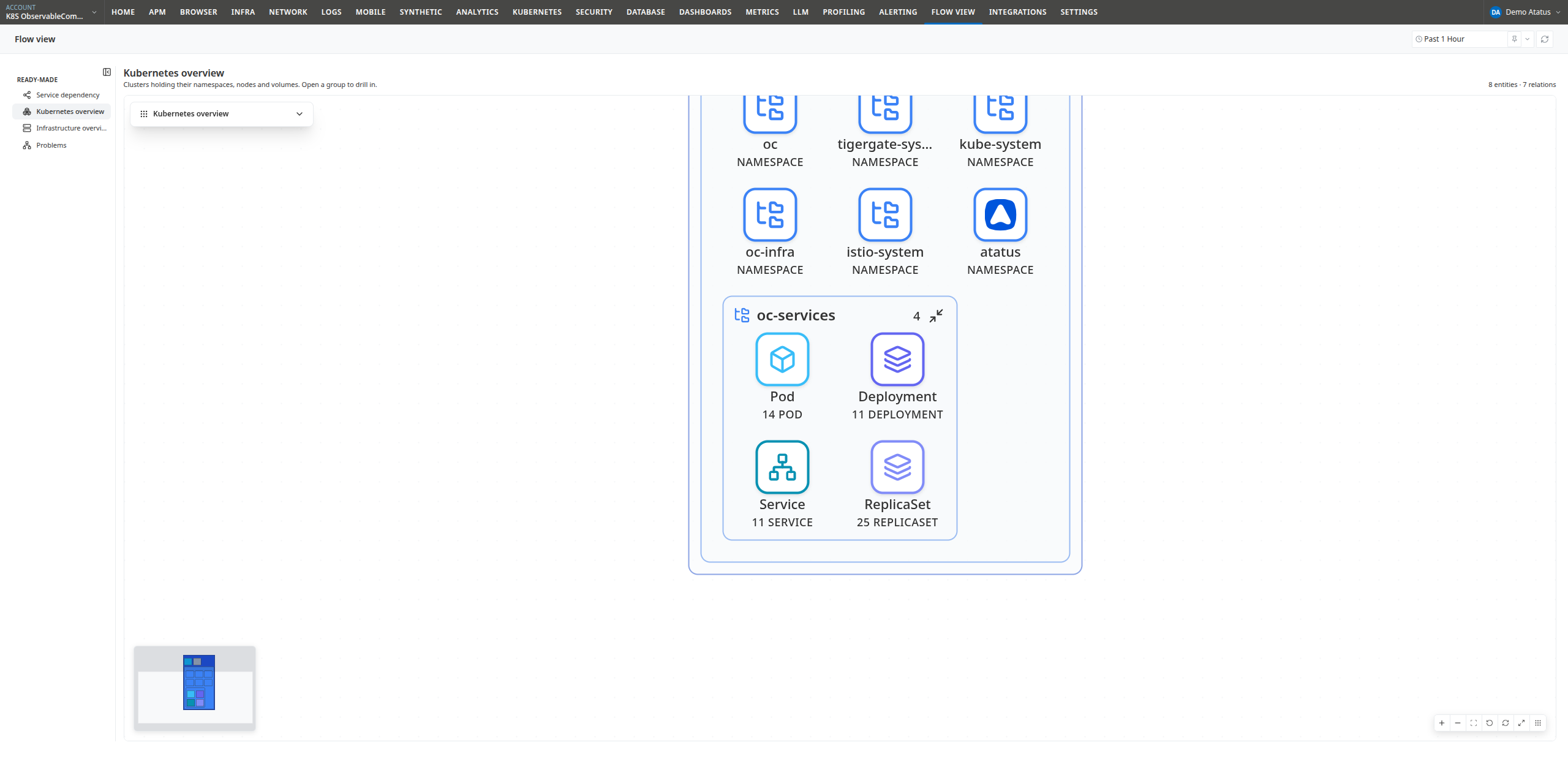
Double-clicking a Namespace expands it into its workload groups:
| Level | Contents |
|---|---|
| Cluster | Nodes, Namespaces, and PersistentVolumes |
| Namespace | Pods, Deployments, ReplicaSets, StatefulSets, DaemonSets, Jobs, CronJobs, and Services |
| Pod | Containers and the APM Service Instance executing within the pod |
Child entities are rendered as nested boxes inside their parent containers, mirroring the Kubernetes object hierarchy. To maintain canvas readability in large clusters, child entities are grouped into counted summary boxes (e.g., 142 POD). Double-click any counted box to expand its individual member objects.
Expanding a Pod links infrastructure to application monitoring: it reveals both the container instances and the APM Service Instance running inside the pod.
Drill down in one click
The Drill down button beside the layout selector expands the entire hierarchy across all clusters and namespaces down to workload groups in a single click, keeping pod and container groups collapsed as counted boxes for clarity.
Hold Ctrl (⌘ on macOS) while clicking the Drill down button to fully expand all workload groups down to individual pods and containers. Clicking the button again collapses all expanded levels back to top-level clusters.
Placement lines
While containment shows which namespace owns a workload, the Placement lines toggle in the sidebar reveals physical scheduling and resource bindings (e.g., which node a pod runs on).
When enabled, placement lines render as pink connections between visible objects:
| Relationship | Description |
|---|---|
SCHEDULED_ON |
A pod is scheduled and running on a specific node |
MANAGED_BY |
A pod is managed by a Deployment, ReplicaSet, or StatefulSet |
BOUND_TO |
A PersistentVolumeClaim is bound to a PersistentVolume |
MOUNTS |
A pod mounts a storage volume |
RUNS_ON |
A workload executes on a specific machine |
Placement lines only appear between entities currently visible on the canvas. Expand the relevant namespaces and nodes before enabling the toggle. This provides a quick way to identify node contention, unbalanced pod distribution, or noisy-neighbor issues across nodes.
Layouts
The Kubernetes Overview view supports two layout modes:
- Box (default): Renders nested rectangular containers matching the Kubernetes containment hierarchy. Node dragging is disabled to maintain strict containment geometry.
- Radial: Renders containers as central hubs with child entities arranged radially around them. When active, two additional toggles appear: Group circles (draws boundary rings around containers) and Color by type (tints rings by entity type).
Relationship with Application Monitoring
High-level APM services and transactions are excluded from this view to keep the Kubernetes cluster topology focused. To inspect service-level call flows and traces, switch to the Service Dependency view. Flow View preserves your navigation and expanded nodes across both views.
Nodes, Deployments, ReplicaSets, Services, and PersistentVolumes are rendered as leaves in containment mode because they associate with pods through placement rather than strict containment. Use the Placement lines toggle to visualize these associations.
Next steps
- Navigating the graph: Expanding, drilling, searching, and shortcuts.
- Infrastructure Overview: Inspect underlying physical and cloud hosts.
 +1-415-800-4104