
Flow View provides unified interaction controls across all four views.
Reading a node
A node's shape indicates whether it contains nested child entities:
- Rounded square: A container node with expandable child entities (e.g., a service containing transactions, or a namespace containing pods).
- Circle: A leaf node with no nested children.
The uppercase sub-label below the node name specifies the entity type and state:
| Sub-label | Meaning |
|---|---|
SERVICE · JS |
A service entity along with its runtime language |
DATABASE SYSTEM |
An unexpanded system entity type |
NAMESPACE · 14 |
A collapsed container showing the count of child entities within it |
Two status badges may appear on an entity icon: - Padlock (top-right): The container group exceeds the display threshold (over 100 members) and is locked to maintain browser responsiveness. - Amber warning triangle (bottom-right): The entity is affected by an open Issue.
Selecting a node
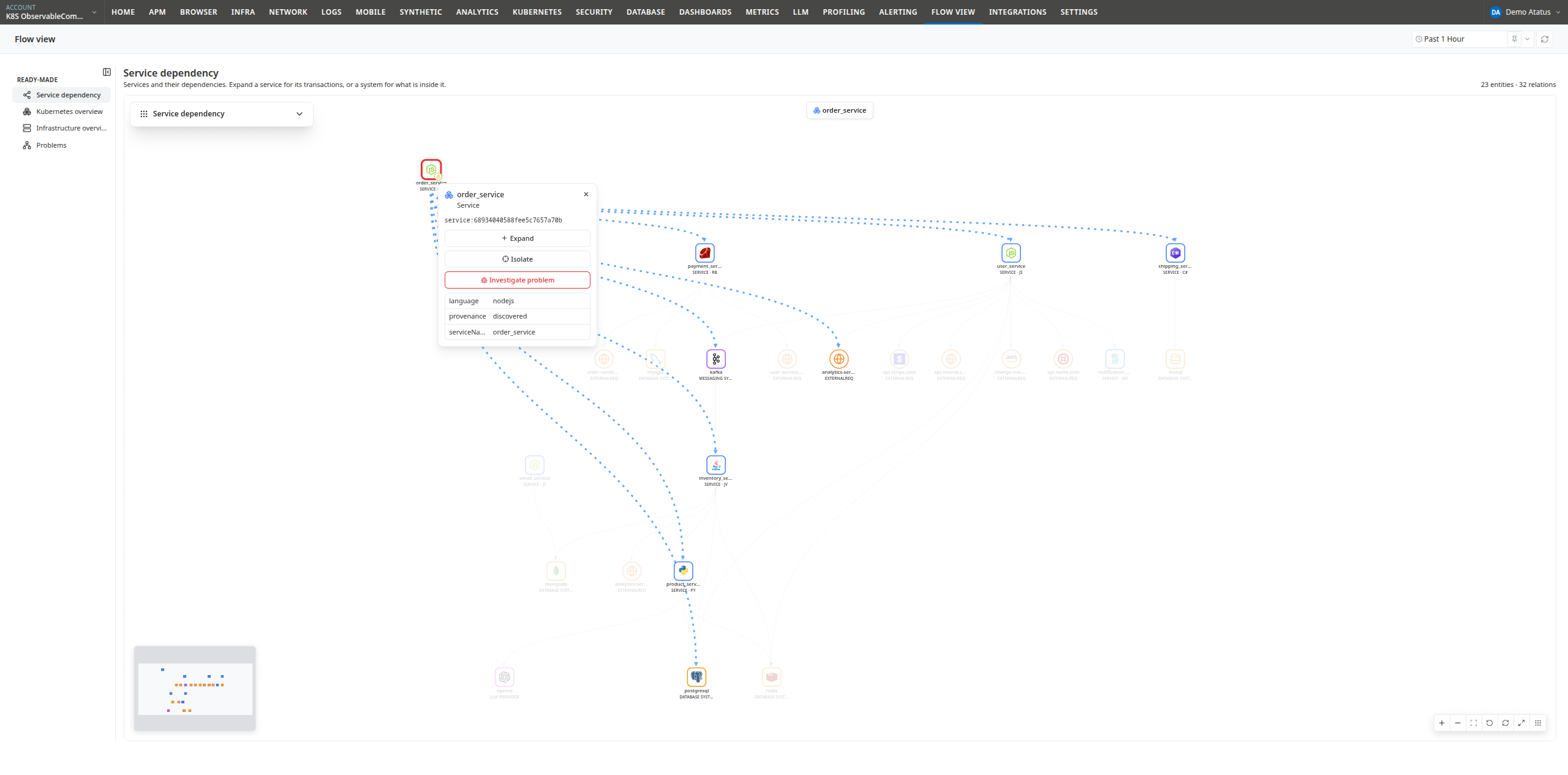
Click a node once to select it. Selection performs the following:
- Opens the info card displaying the entity name, type, entity key, and attributes.
- Highlights the node with a focus ring and animates connected relationship lines in blue.
- Dims unrelated nodes to bring direct dependencies into focus.
The info card provides contextual actions depending on the entity type:
| Action | Availability | Description |
|---|---|---|
| Expand / Collapse | Container nodes | Expands or collapses child entities |
| Isolate | Services (Service Dependency view) | Filters the canvas to display only the selected service and its direct 1-hop dependencies |
| Investigate problem | Entities with active Problems or Issues | Opens the problem investigation panel |
Click any empty area of the canvas to clear the current selection and restore dimmed nodes.
Expanding and drilling down
Double-click a node to expand its nested hierarchy. You can also click Expand in the info card, or click the expand icon beside an entity in the sidebar node list.
When expanding a container, child entities are initially grouped into counted boxes by type (e.g., 14 POD, 11 DEPLOYMENT) to prevent canvas congestion. Double-click any counted box to expand its individual member nodes.
| Child Entity Count | Behavior |
|---|---|
| 100 or fewer (single type) | Expands automatically into individual nodes |
| 100 or fewer (multiple types) | Renders as counted summary boxes; double-click a box to expand its members |
| More than 100 | Locked with a padlock badge and a Too many to open tooltip to prevent browser degradation |
Collapsing a container folds child entities back into the parent node, updating the sub-label to TYPE · N.
A breadcrumb navigation trail appears at the top of the canvas during drill-down (e.g., observable-commerce-3 › Namespace). Click any breadcrumb segment to navigate back to that level.
In the Kubernetes and Infrastructure views, the Drill down button beside the layout selector expands the entire hierarchy to standard viewing depth in a single click. Hold Ctrl (⌘ on macOS) while clicking to expand completely down to individual leaf nodes.
Isolating a service
In the Service Dependency view, select a service and click Isolate on its info card to filter the view exclusively to that service, its transactions, and its direct 1-hop connections. Unlike node selection (which dims other nodes), isolation removes unrelated entities from the canvas entirely.
Click Clear isolation at the bottom of the canvas to return to the full map.
Finding a node
Use the sidebar search box to find entities by display name or entity key. Press Ctrl+F (⌘+F on macOS) to focus the search box from anywhere on the page. Selecting a search result centers and highlights the node on the canvas.
The Node types section below the search box categorizes all currently rendered entities by type and count. Click a type category to expand or collapse its list, or click an entity name to focus it on the canvas.
Layouts and line styles
The Graph layout selector in the sidebar provides layout modes tailored to each view:
| Layout | Available In | Description |
|---|---|---|
| Vertical | Service Dependency, Problems | Arranges upstream callers above and downstream dependencies below |
| Horizontal | Service Dependency, Problems | Arranges upstream callers on the left and downstream dependencies on the right |
| Force | Service Dependency, Problems | Physics-based force-directed layout that groups interconnected clusters naturally |
| Box | Kubernetes, Infrastructure | Renders hierarchical containment as nested rectangular boxes |
| Radial | Kubernetes, Infrastructure | Renders containers as central hubs with child entities organized radially |
In Vertical and Horizontal layouts, clicking the active layout button inverts the flow direction. In Radial layout, two additional toggles are available: Group circles (draws boundary rings around containers) and Color by type (tints boundary rings by entity type).
Use the Line style selector to switch edge rendering between Curved, Step, and Straight. Click the eye icon next to the selector to toggle line visibility on and off in dense graphs.
Nodes can be repositioned by dragging in all layouts except Box (where positions are fixed by hierarchical containment).
Reading the lines
Line colors identify the specific relationship between connected entities:
| Line Color | Relationship Types | Meaning |
|---|---|---|
| Grey | CALLS, CONNECTED_TO |
Direct communication, traffic, or logical connection |
| Blue, dotted | ROUTES_TO, EXPOSES |
Traffic routing and service port exposure |
| Purple, dashed | MONITORS |
Atatus monitoring project association |
| Pink | SCHEDULED_ON, MANAGED_BY, BOUND_TO, RUNS_ON, MOUNTS |
Resource placement and scheduling (e.g., pod on node, volume mounts) |
| Green | LOCATED_IN |
Physical or cloud placement (e.g., host in an availability zone) |
| Red | ROOT_CAUSE |
Problem association pointing directly to the root-cause entity |
| Amber, dotted | EVIDENCE, AFFECTS |
Problem correlation linking affected symptom entities or open Issues |
Click any line to view a details card displaying the source entity, target entity, and relationship type. CALLS lines are unlabeled by default on the canvas to maintain visual clarity; all other relationship lines display their type labels.
When a container node is collapsed, outgoing calls from its child entities are aggregated into a single bundled line. Hovering over a specific child entity inside an expanded container highlights its individual connection line.
Canvas controls and shortcuts
The canvas toolbar in the bottom-right corner provides zoom in, zoom out, fit to view, undo, reset view, and fullscreen toggles. A minimap is located in the bottom-left corner.
| Shortcut | Action |
|---|---|
| F | Fit entire map to canvas view |
| Ctrl / ⌘ + Z | Undo the last expand, collapse, drill down, or isolate action |
| R | Reset canvas view and position |
| Shift + F | Toggle fullscreen mode |
| Ctrl / ⌘ + F | Focus the entity search box |
Navigation actions (expand, collapse, drill down, isolate) are stored in an undo history. Press Ctrl+Z (⌘+Z on macOS) to step backward through recent actions.
On very large graphs (exceeding ~800 visible nodes), Flow View automatically disables the minimap, hover dimming, and motion transitions to maintain responsive rendering. To restore full interactive features, collapse containers or isolate a service to reduce the visible node count.
Floating sidebar
The control sidebar floats over the canvas and can be repositioned by dragging its top-left handle, or collapsed to its title bar using the chevron icon. The left Ready-made navigation rail can also be collapsed to an icon-only view.
 +1-415-800-4104