Integrate GitLab with Atatus
GitLab is a one stop application for your entire project development life cycle.Setup
-
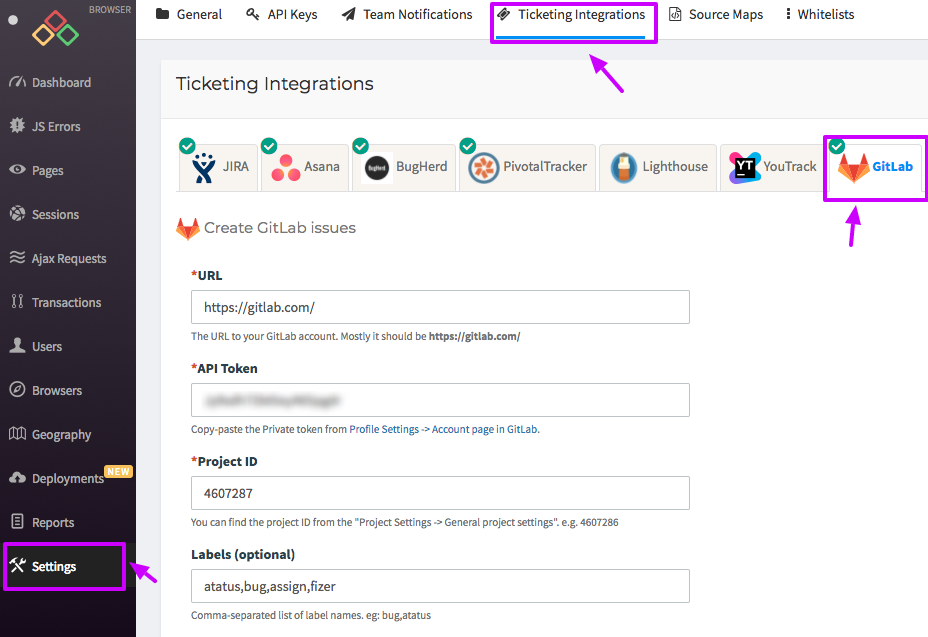
Go to project Settings » Ticketing Integrations » GitLab in Atatus.
-
Enter the URL of your GitLab account. Mostly it should be
https://gitlab.com/ -
Login to your GitLab account, go into Profile Settings then choose
AccessTokens from the sidebar. Generate a new personal access token with checked scopesapiandwrite_repository, then copy and paste your new access token into API Token text box. -
Enter your project Id. You can find the project Id from the
Project Settings » General project settings. Copy and paste it into the Project ID text box. - Click on the Save button when you’re done.
How to Use
-
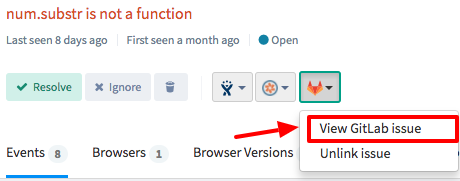
After you set up the integration, you’ll notice a GitLab button below the error message in the Error page. This will allow you to create a new issue for the error or link with an existing one.
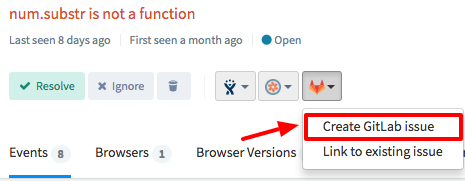
-
Once the issue is created or linked, you will see the link in the drop down menu. To go to the issue in GitLab simply click on the created link.