Integrate JIRA with Atatus
JIRA is an issue tracking system built by the Atlassian team.Setup
-
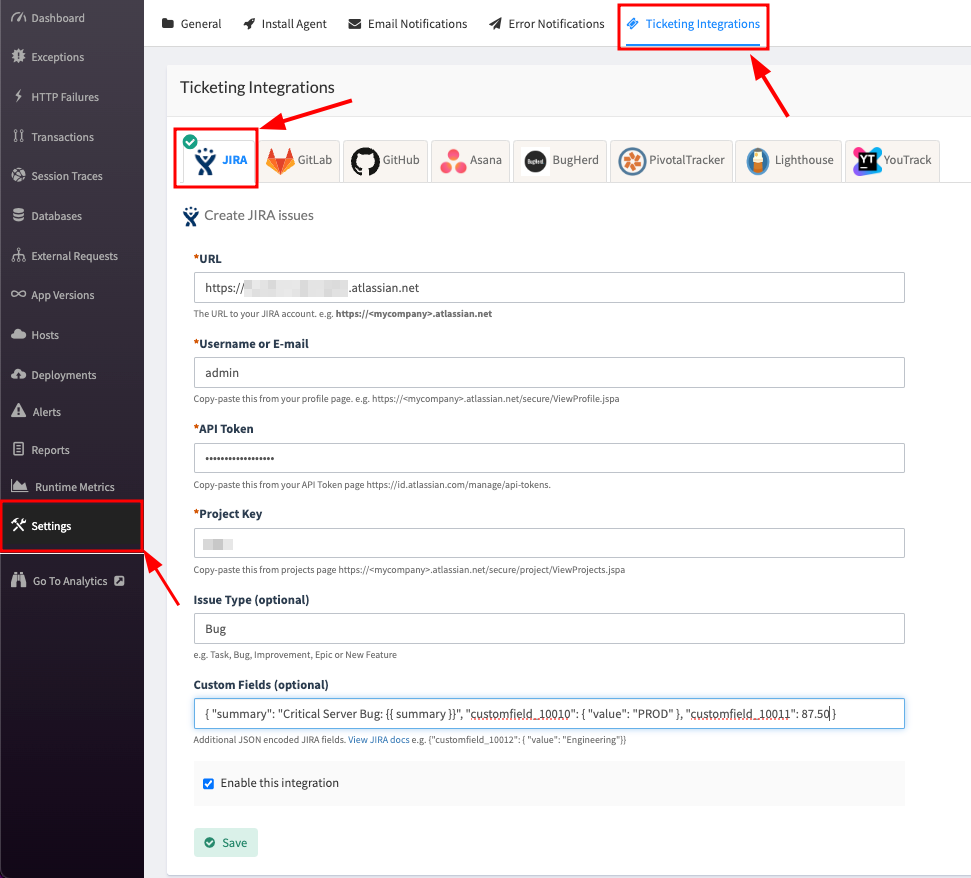
Go to project Settings » Ticketing Integrations » JIRA in Atatus.
-
Enter the
URLof your JIRA account. Example,.https://myaccount.atlassian.net -
Enter your
email address (or) usernameandAPI token(password - in case if it is older version) in the respective text box. -
Copy and paste the
Project Keyfrom your JIRA project edit page into the text box. Example,https://myaccount.atlassian.net/secure/project/ViewProjects.jspa - Enter the issue type. It can either be Task, Bug, Improvement, Epic or New Feature. By default, the issue type is Task.
-
Add Custom Field and Summary
Custom Field: You can send any custom fields along with your error details to JIRA. Custom fields are uniquely identified by the field ID, as display names are not unique within a Jira instance.Summary: Change the JIRA task summary with your custom text. You can use the Atatus summary with a variable “{{summary}}”
- Click on the Save button when you’re done.
How to Use
-
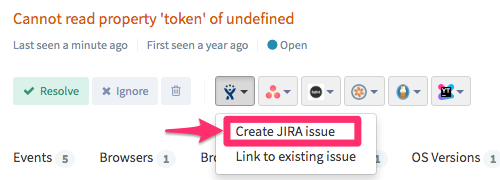
After you set up the integration, you’ll notice a JIRA button below the error message in the Error page. This will allow you to create a new issue for the error or link with an existing one.
-
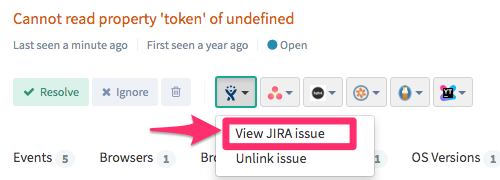
Once the issue is created or linked, you will see the link in the drop down menu. To jump to the issue in JIRA simply click on the link created.