Set Up Atatus for SSO
- Log in to your Atatus account.
- Navigate to Settings → Account Settings → Single Sign-On.
- Copy the Account ID, which will be used as the Client ID in Keycloak.
- Choose one of the following methods to upload metadata:
- Option A: Paste the SAML metadata URL from Keycloak. The format should be: https://<your-host>/realms/<realm-name>/protocol/saml/descriptor
- Option B: Upload the SAML metadata XML file manually.
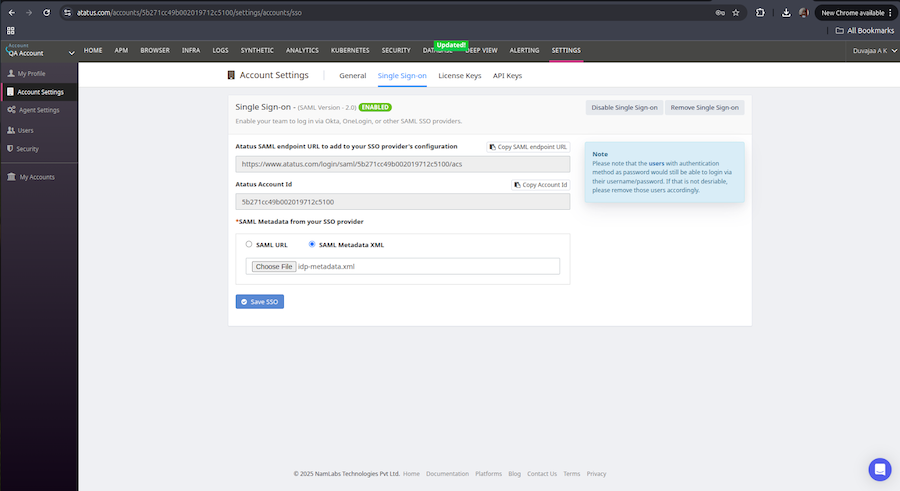 5. Click on the Save SSO button
Note: In order to retrieve the SAML metadata URL, you must first complete the Keycloak configuration steps below.
5. Click on the Save SSO button
Note: In order to retrieve the SAML metadata URL, you must first complete the Keycloak configuration steps below.
Configure Keycloak
1. Create a Realm
- Log in to the Keycloak Admin Console.
-
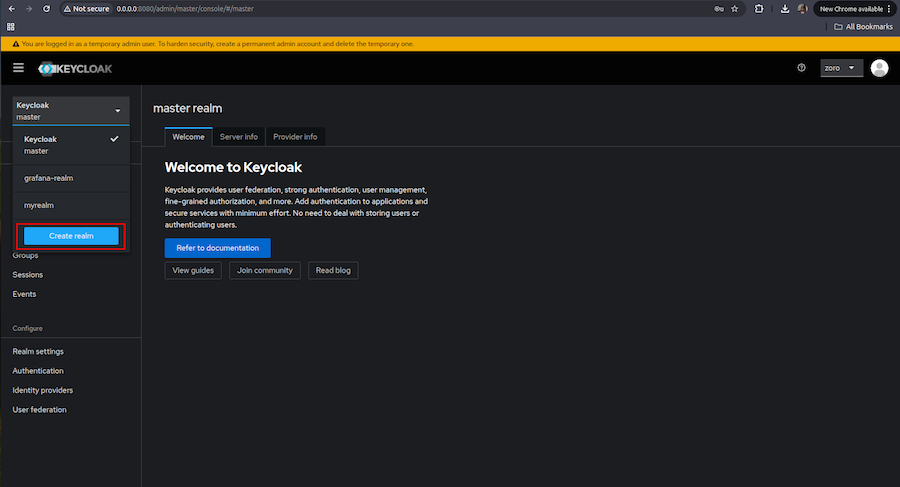
In the top-left menu, click on Keycloak next to the Master realm.
-
Select Create Realm, and provide a name (e.g., Atatus-realm).
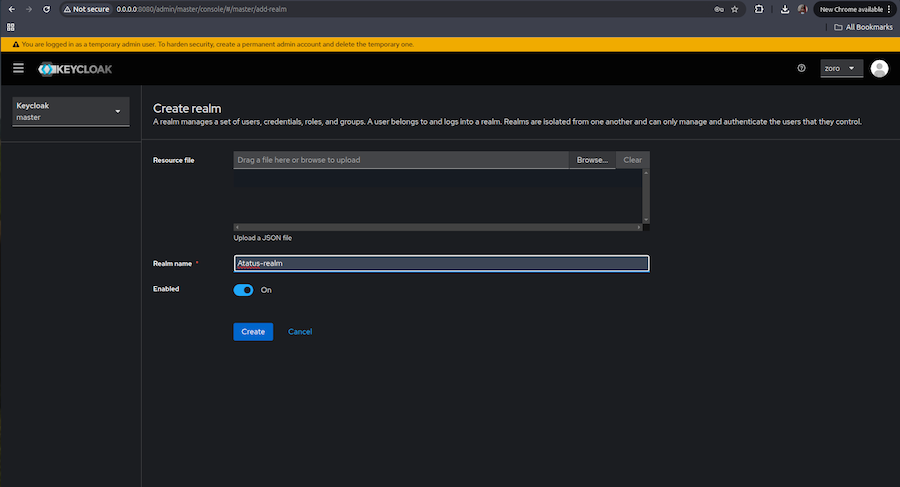
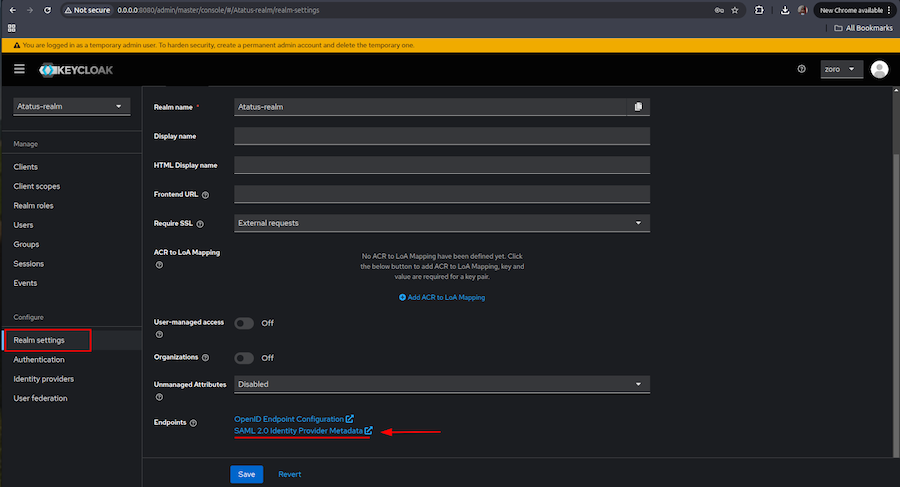
- Once the realm is created, go to Realm Settings.
-
Download the SAML Identity Provider Metadata for later use in Atatus.
2. Create a Client
-
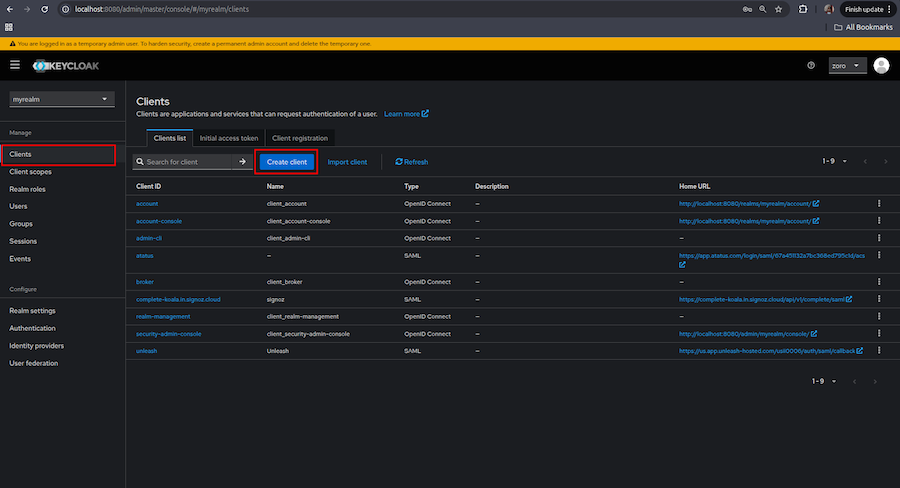
Navigate to Clients > Create Client.
-
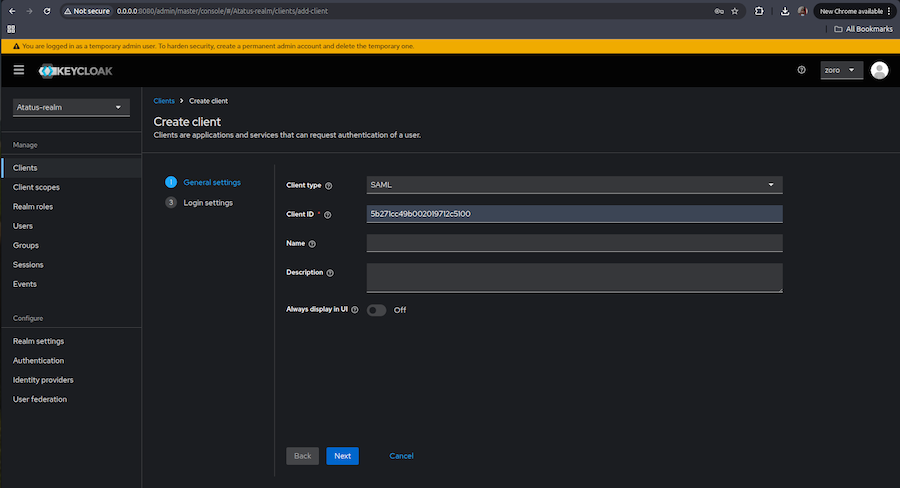
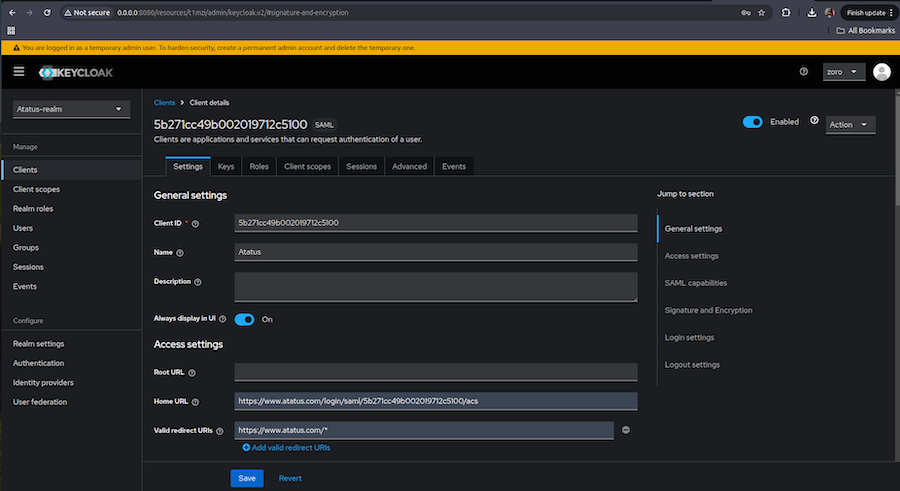
Fill in the following details:
- Client Type: Select SAML.
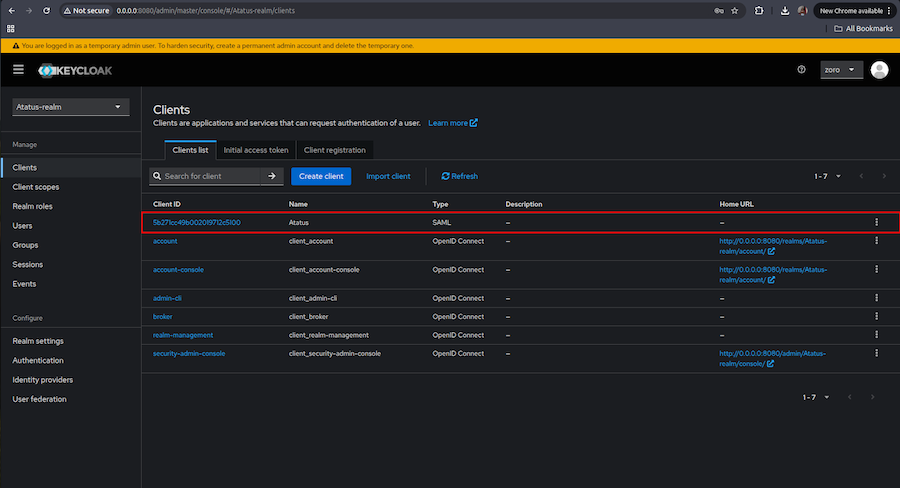
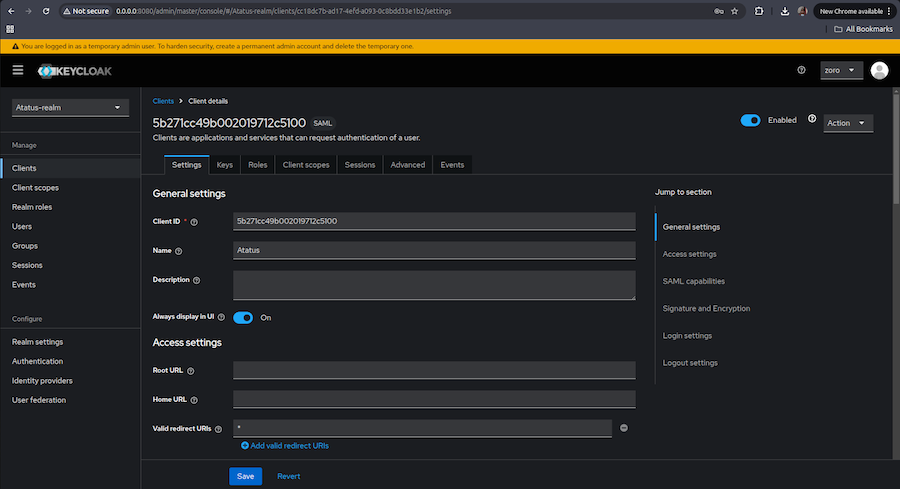
- Client ID: Enter the Account ID value obtained from the Atatus Single Sign-On settings page. This acts as the SAML issuer.
- Home URL (required if accessing Atatus through Keycloak): Enter the Atatus SAML endpoint URL.
- Valid Redirect URIs (required): Provide either https://www.atatus.com/* or use a wildcard * if flexibility is needed during testing.
-
Use the default settings unless specific changes are needed.Click save.
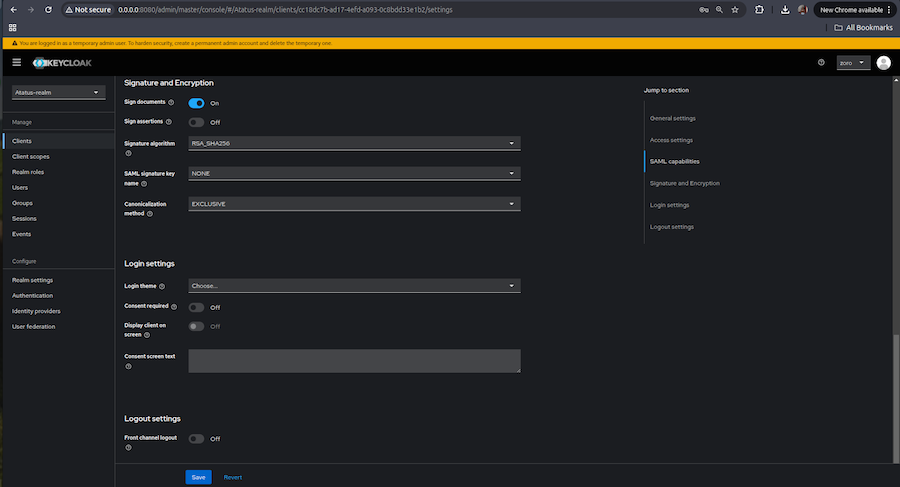
- Click Save to create the client.
-
After creation, ensure the client appears in the list.